

We have finally made it into the 21st Century and have moved to an online system for our Beaver, Cub and Scout groups, allowing us to keep records up-to-date, and also to communicate more effectively to all our parents and young people.

Guide to Getting Online Scout Manager Ready
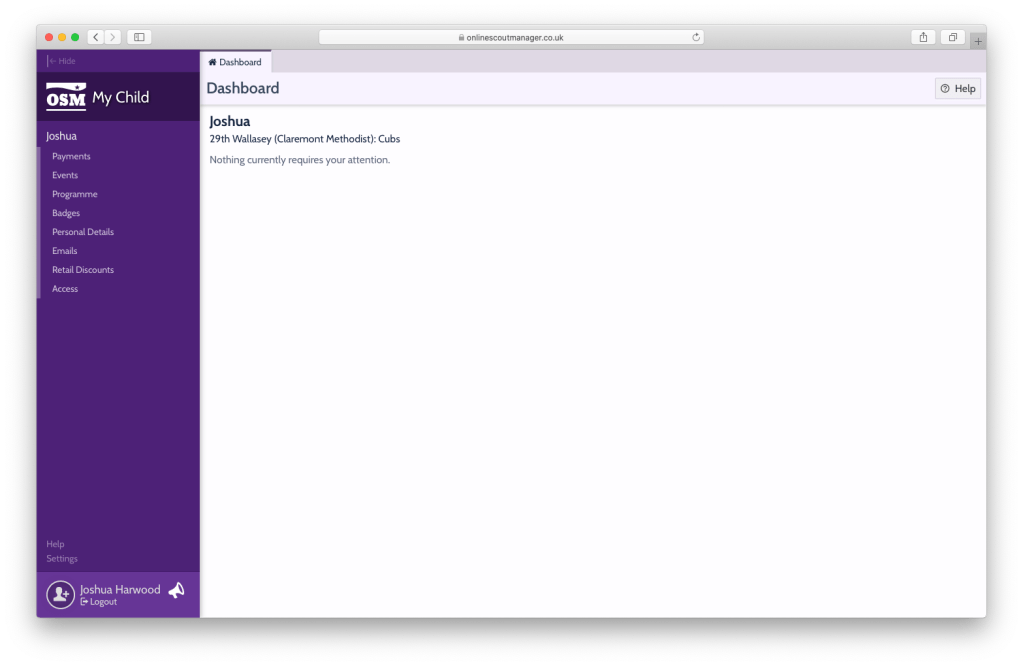
1) Welcome to the portal
This is the home screen for our new OSM, this is what we refer to as ‘the portal’. On this home screen you will see up-to-date notifications and updates about upcoming trips, outstanding payments and any urgent messages that has been sent by the group.
On the left-hand side you will see all the different parts of the portal such as badges and personal details.
The first thing you should do is head over to the personal details section and input your child’s details, including all emergency contacts, medical details and photographic consents.
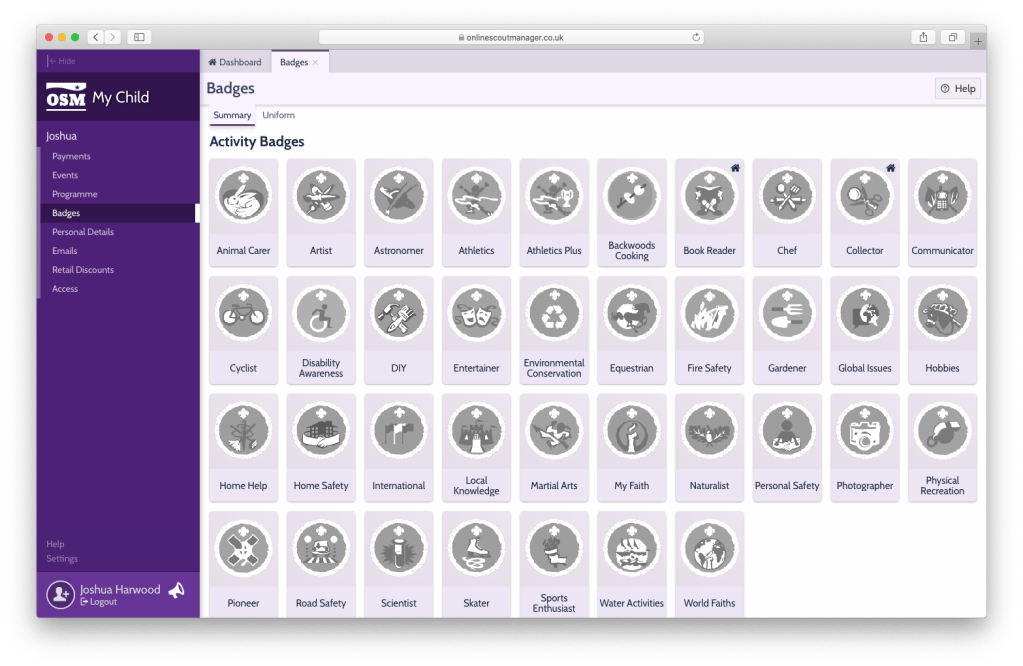
2) The Home Badges
This is the badge section of the portal, here you will see all the badges that your child has completed (these will have a coloured image) and any badges that your child is yet to complete (these will be black and white).
During Covid times we implemented a ‘badges at home’ system, which allows our young people to complete and earn badges whilst they are at home, and will give parents some activities to do with your little angles.
The badges that can be done at home are shown with a little symbol of a house in the top right hand corner of the relevant badge, for instance on the right you can see the book reader and the collector badge are available to do at home (although there are more than just these two now!). Select a badge that your child would like to do to find out more.
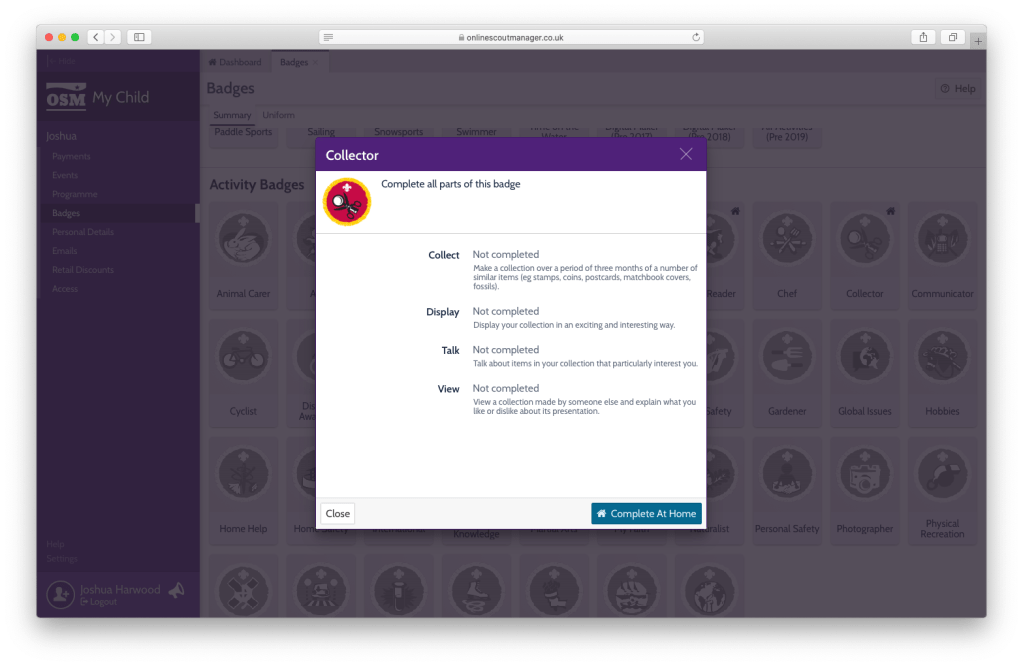
3) Selecting badges
Once your child has selected a badge they would like to complete, click on them to find out more information and to also see if it can be completed at home.
This first screen will tell you some short information about the badge, but to find out more click the ‘Complete at Home’ button to learn more about the badge from Rikki and Mowgli.
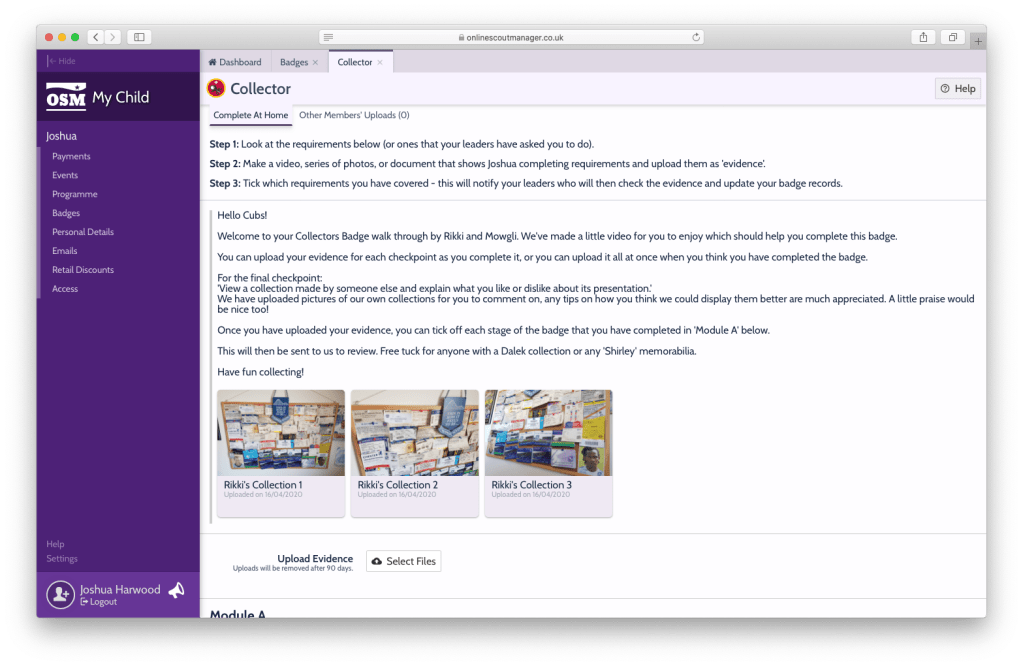
4) Learning how to complete the badge
This next section of the portal will teach your child how to complete the badge and what they need to do to complete the badge at home.
This section includes written, video and picture examples of what you need to do, it also includes a message section so that you can send any questions you have to our leaders.
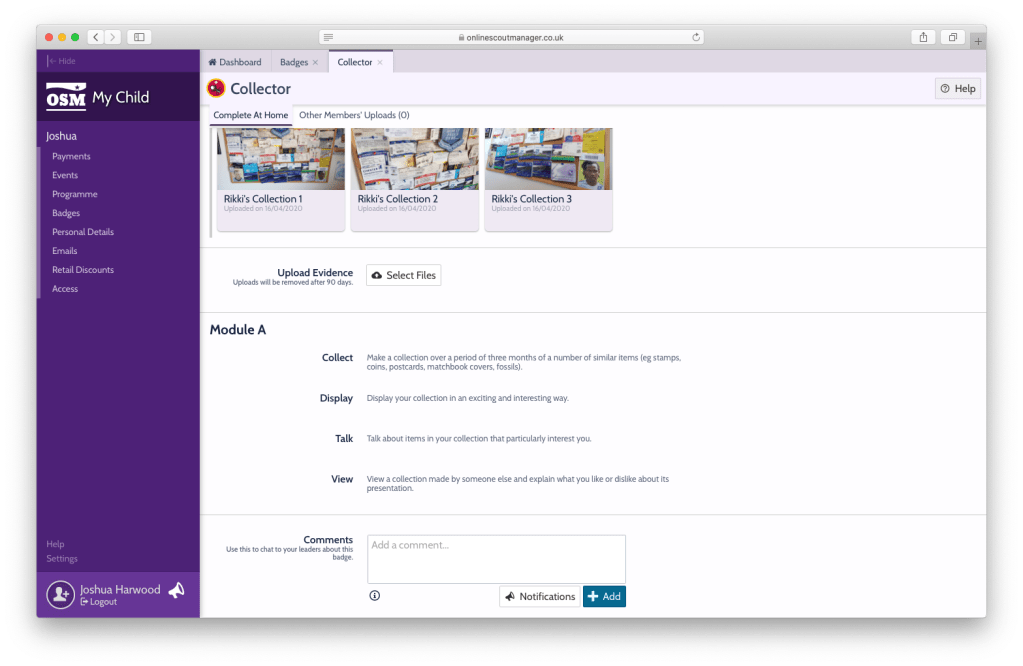
5) Uploading Evidence
The final thing you need to do is to send us your completed work, this can be done by selecting files, and uploading documents, pictures or videos to prove that your child has completed the badge.
If you have any questions regarding uploading evidence do not hesitate to contact our leaders via Facebook, Twitter or to rikki@29thwallasey.com.
Guide to Downloading Zoom

Home of Our Virtual Group
During the pandemic we used Zoom in order to bring our sections together for weekly section meetings. Whilst we have no intention on returning to Zoom, we’re keeping these instructions on here just in case we ever need them again!
You can download Zoom on to your laptop, phone, or iPad, following the link below to the Zoom download centre in order to learn more.
Once you have downloaded the app sit back and relax and wait until you receive an email from the 29th about our next meeting. Each email will have a Meeting ID and Password… this is all you need in order to join our zoom meetings. Input these into the Zoom app and BOOM you are now apart of the 29th Virtual Scout Group.
If you have any questions regarding uploading evidence do not hesitate to contact our leaders via Facebook, Twitter or at rikki@29thwallasey.com
 29th Wallasey Scout Group